How to Convert iPhone HEIC Photos to JPG
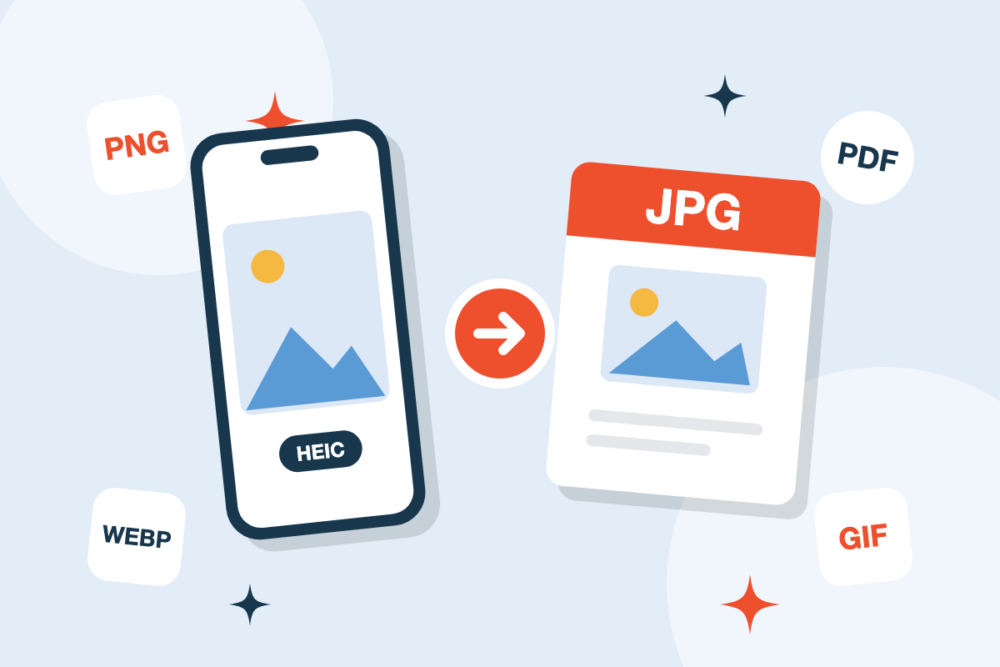
You copy photos from your iPhone to your computer, try to open one and get an error. Or you upload a picture to a website and it is rejected. The reason is almost always the same: the file is a HEIC image, not a JPG.
What is a HEIC file?
HEIC (High Efficiency Image Container) is the format iPhones use by default when the camera is set to High Efficiency. It stores photos at roughly half the size of a JPG with similar quality, which saves a lot of space on your phone.
The problem is compatibility. Many Windows computers, older photo editors, online forms and printing services still do not accept HEIC files.
Convert HEIC to JPG in three steps
- Upload your photos to the HEIC → JPG converter. You can add several files at once.
- Convert them with one click. JPG is selected automatically.
- Download your JPG images, ready to open anywhere.
There is nothing to install and it works on Windows, Mac, Android and iPhone.
Make the images smaller or fit a specific size
Photos from modern phones are large. If you need to send them by email or upload them to a form with a size limit, run the JPG files through Compress Image, or use Resize Image to set exact pixel dimensions.
Need them in a single document?
Once your photos are in JPG, you can combine them into one file with JPG → PDF. This is handy for receipts, ID scans or travel documents.
Can I stop my iPhone from taking HEIC photos?
Yes. On your iPhone go to Settings → Camera → Formats and choose Most Compatible. New photos will be saved as JPG. Keep in mind they will take up more storage, so many people prefer to keep HEIC and convert only when needed.
Get started
Open the HEIC → JPG converter and turn your iPhone photos into JPG now.