How to Convert PDF Pages into JPG Images
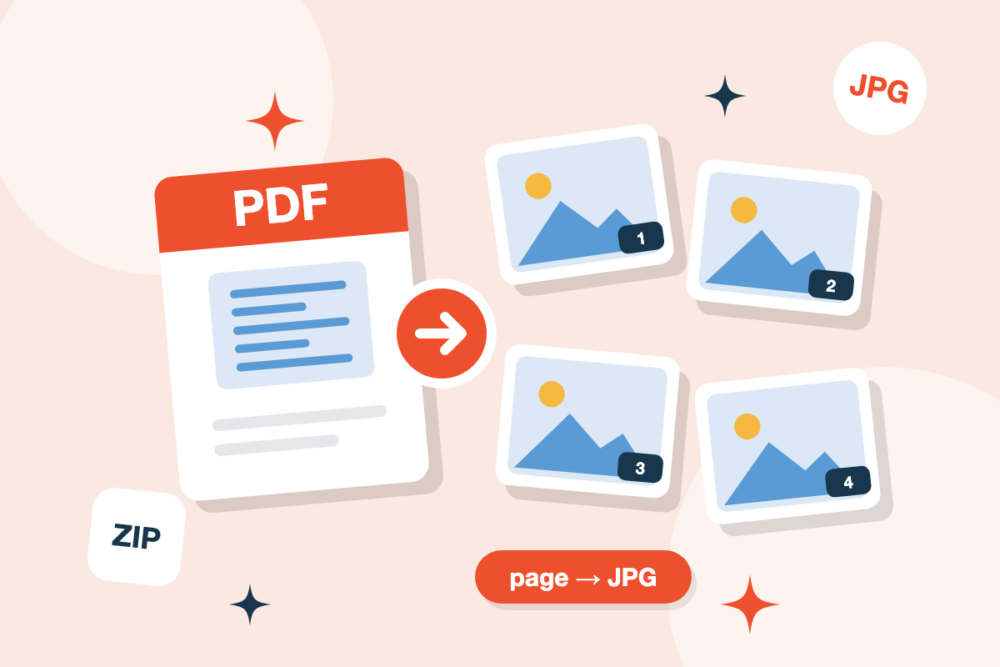
Not every app or website accepts PDFs. A flyer for social media, a page for a presentation or a ticket to show in a chat often works better as a simple image. Converting a PDF to JPG solves that in seconds.
When a JPG is more practical than a PDF
- Social media: networks expect images, not documents.
- Chats: an image shows up directly in the conversation, without opening a file.
- Presentations and documents: insert a page of a PDF as a picture into slides or a text document.
- Websites: show a preview of a menu, brochure or certificate.
Convert your PDF in three steps
- Upload your file to PDF → JPG.
- Convert it.
- Download the result.
A one-page PDF gives you a single JPG. If your PDF has several pages, each page becomes its own image and you download them together in a ZIP file. Most computers and phones can open a ZIP with a tap or a double click.
Only need one page?
If you only want the cover of a brochure or one page of a long report, extract that page first with Split PDF. Then convert just that page, and you won't have to search through dozens of images.
Make the images lighter
Pages full of photos can produce large images. If you want to post them on a website or send many at once, shrink them with Compress Image.
And the other way round
Have photos of documents that you need to send as a PDF? JPG → PDF turns your images into a PDF file.
Why JPG?
JPG is the image format that practically every phone, computer, app and website can open. It keeps file sizes small, which makes it ideal for pages with photos, such as brochures, flyers and menus. That is why it is usually the safest choice when you want to share a PDF page as a picture.
Common uses
- Post an event poster designed as a PDF on Instagram or Facebook.
- Send a boarding pass or ticket as a picture, so it is easy to show on your phone.
- Add a page of a report to a slide deck.
- Share a page of a school worksheet or sheet music in a class or band group chat.
- Put a preview of a restaurant menu or price list on your website, with a link to the full PDF.
Tips for a good result
- Text in a JPG can't be selected or searched. If the reader needs to copy text, send the PDF as well.
- Small print may be hard to read in an image on a phone. Crop or zoom in on the important part when sharing.
- Check the images before you share them, especially pages with personal details.
Get started
Open PDF → JPG and turn your PDF pages into images now.